Today's Dashboard
Valuable data at a glance
Table of Contents
Overview
The dashboard gives you valuable data at a glance. Default setting provides data for the current date & time and based on the current location selected. Each tile represents a different data variable which can be displayed based on the information that has been provided to T.M.A.S. through POS Integrations or importing files.
Retail Equation
The Retail Equation displays dashboard tiles in the order to understand influencing factors of sales.
Learn about Retail Equation Playground

(New) Editing Sales and Transactions on the Retail Equation Dashboard
When targeting a specific location
Note
Requires a Retail Subscription Plan
Industry Index
A tool for organizations to see traffic-specific benchmarks and trends related to their industry and country of origin.
 |
 |
 |
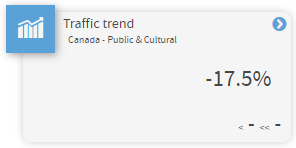 |
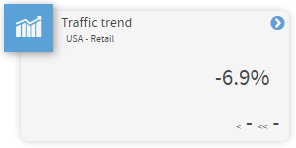
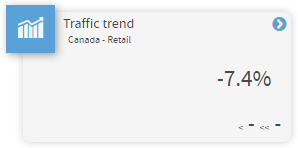
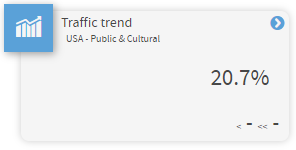
Traffic Trend tile will provide a week-to-date (Sunday to Saturday) percentage-based stat indicating if traffic is UP+ or DOWN- as a sum of all businesses dependent on the country or the location's industry (Retail or Public & Cultural). The trend compares Last week to date to This week to date (Sunday to Saturday).
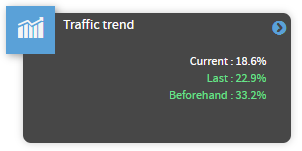
Hovering over tiles will provide stats for the previous week and the week beforehand.
Dashboard Traffic Only Tile Filtering

Depending on the Chain / Region / District or Location's business category selection, the dashboard will display Sales and Staff data along with Traffic data or simply Traffic only.

Sales and Staff Data Displayed |
Traffic Only Tiles Displayed |
||
|
Arts, crafts, and collectibles
Babies
Beauty and fragrances
Books and magazines
Clothing, accessories
Computers, accessories, and services
Electronics and telecom
Food retail and service
Gifts and flowers
|
Health and personal care
Home and garden
Pets and animals
Retail (not elsewhere classified)
Sports and outdoors
Toys and hobbies
Travel
Vehicle sales
Vehicle service and accessories
|
Business to business
Education
Entertainment and media
FIN("Financial services and products")
Government
Nonprofit
|
Religion and spirituality (for profit)
Services - other
Malls and diverse shopping centers
Public Institutes and Organisms
Unclassified/Not_Specified
|
User Role-Based Dashboards
Depending on the role membership indicated on a user account, one of the following dashboards will appear as default, in addition to the Retail Equation.
Customization of Dashboards available on demand
- Limited to hiding unwanted tiles for focus purposes.
- Please note additional $fees may apply.
- Please send requests/inquiries to techsupport@storetraffic.com for more information.

Traffic Dashboard Tiles
 |
Today's Traffic - Current Traffic up to the last update from the Traffic counter |
 |
Pass By - Traffic that has passed in front of your location |
 |
Capture Rate - Ratio between traffic dollars passing in front of your location and Walk-in traffic (traffic entering into the location) |
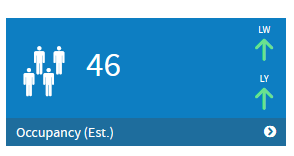 |
Occupancy - Estimated number of people currently inside the location (available with directional traffic counting technology only) |
Sales Dashboard Tiles
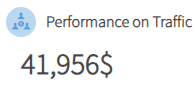 |
Performance on Traffic - Current sales dollar value per 100 people walking in, based on the current general performance |
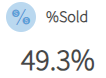 |
% Sold - Transactions / Traffic (Conversion Rate) |
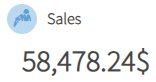 |
Sales - Total sales dollars accumulated for Today |
 |
Average Sale - Sales Dollars averaged to a single transaction for Today |
 |
Transactions - Total accumulated transactions for Today |
 |
Units per Transaction - Average number of items purchased per transaction for Today |
Staffing Dashboard Tiles
 |
Staff Hours - Total of the accumulated staff hours for today |
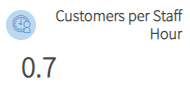 |
Customer per staff Hour - Traffic 'handled' for each single staff hour |
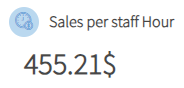 |
Sales per staff Hour - Sales currency 'handled' for each single staff hour |
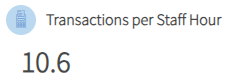 |
Transactions per staff Hour - Average number of transactions 'handled' for each single staff hour |
Facts Dashboard Tiles
 |
Weather - Current weather in the selected location Data source: openweathermap.org - Refresh rate: about every 3 hours |
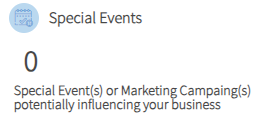 |
Special Event / Marketing Campaign - Displays indicator if there are any current or past events for the selected location |
Dashboard Setting(s)
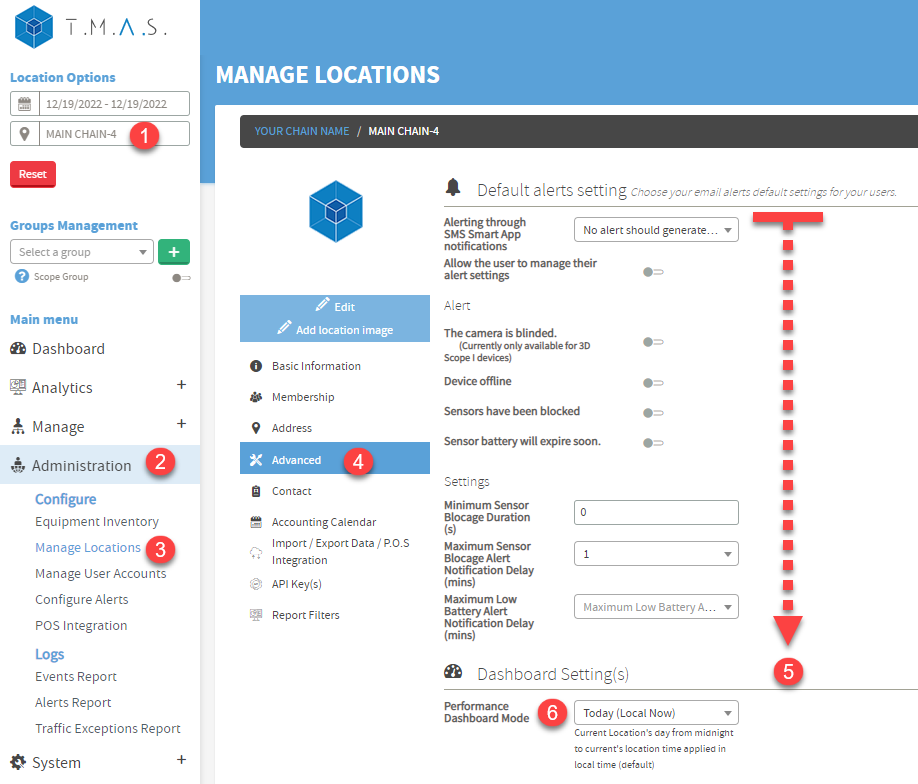
The performance dashboard mode can be configured to display data based on the Chain / Region's location as well as consider the business hours of locations.
| How to change the performance dashboard mode | |
 |
|
F.A.Q.
|
Q: Where can I change my industry for the Industry Index? 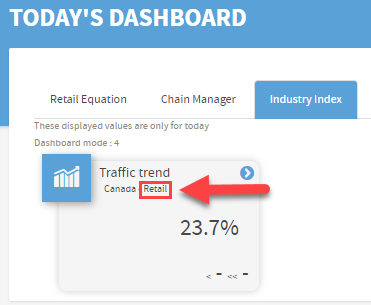 |
| A: You can modify your Business Category for your chain with the option found in Manage locations under basic information. |
Q: What periods does the dashboard compare? |
| A: Today's figures, plus two comparisons: last week and last year. Each comparison covers a single day. The dashboard tiles do not show week to date, month or year to date comparisons. |
Q: Which day does the last week comparison use? |
| A: The same day, seven days earlier. |
Q: Which day does the last year comparison use? |
| A: The same weekday 52 weeks earlier, which is 364 days, not the same calendar date. For example, Wednesday November 4, 2026 is compared with Wednesday November 5, 2025. |
Q: Are the comparisons for the full day? |
| A: They use the same time window as today's figures. That window depends on the location's performance dashboard mode, found under Manage Locations > Advanced > Dashboard Setting(s). Depending on the mode it can be all day, up to the current time, up to the last completed hour, custom hours or business hours. Locations created after April 1, 2026 default to all day, respecting business hours. |
Q: Why does a comparison show "No Data..." on every tile? |
| A: Because no traffic was reported for that day, for example if the counter was offline. Traffic is the starting point of the Retail Equation, so a day without traffic cannot give a complete comparison. This affects every tile, including Sales, Average Sale, Transactions, Units per Transaction, Staff Hours, % Sold, Performance on Traffic, the per staff hour tiles, Pass By and Capture Rate. No setting changes this. |
Q: Why does the last week or last year comparison show "No Data..." when we had sales that day? |
| A: Sales and transactions are still saved and appear in reports such as the Totaling report, but a comparison is shown only when traffic was recorded for that day. Last week and last year are checked separately, so one can show figures while the other shows "No Data...". |
Q: What if the store had no visitors on the comparison day? |
| A: A day recorded with zero traffic is still compared. "No Data..." appears only when no traffic was reported at all, not when traffic was zero. |