How do I manage my T.M.A.S. subscription?
T.M.A.S. Payment by locationsActivate a T.M.A.S. subscription and manage credit cards in the portal, or contact StoreTraffic to change plans, switch billing or cancel.
Table of Contents
Existing T.M.A.S. customers handle two things themselves in the T.M.A.S. portal: activating a new subscription and managing credit cards. They can also view active subscriptions there. Changes to an existing subscription go through StoreTraffic Customer Success at success@storetraffic.com. That includes changing quantity or plan, switching between monthly and yearly billing, and cancelling.
| Task | Who does it | How |
|---|---|---|
| Activate a new T.M.A.S. subscription | You (self-service) | T.M.A.S. portal |
| View active subscriptions and next payment date | You (self-service) | T.M.A.S. portal → Manage Subscriptions |
| Add, update or remove a credit card | You (self-service) | Manage Credit Cards |
| Add, edit or cancel a subscription | Customer Success | success@storetraffic.com |
| Switch between monthly and yearly billing | Customer Success | success@storetraffic.com |
| Reduce billing after removing locations or devices | You, then Customer Success | Delete in T.M.A.S., then email success@storetraffic.com |
| Pay by a method other than credit card | Customer Success | success@storetraffic.com |
| Get receipts or invoices | Administration | administration@storetraffic.com |
What can I do myself in the T.M.A.S. portal?
Who can do this: you need Chain & User Manager access to manage subscriptions and credit cards. If you don't see Manage Credit Card(s), ask your company's Chain & User Manager to grant access or make the change for you.
Activate a new subscription
- Log in to the T.M.A.S. portal.
- Choose a plan. See What's included in each T.M.A.S. plan? to compare plans.
- Confirm your billing address.
- Add a credit card (AMEX, Visa or Mastercard).
- Complete the purchase.
You'll receive a confirmation email and can then book an onboarding session. For pricing and the hardware rebate, see Upgrade to T.M.A.S. from the free SMS app.
View your active subscriptions
| 1) Click your username in the top-right corner. |  |
| 2) Select Manage Subscriptions. | 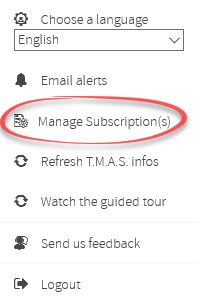 |
|
The Active Subscriptions tab shows:
|
 |
|
The usage bar shows device or location subscriptions by colour:
|
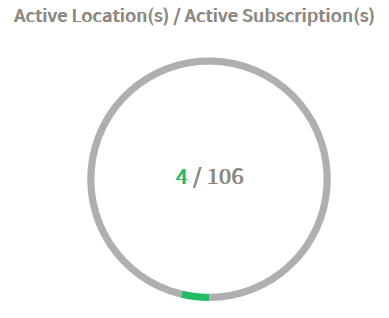 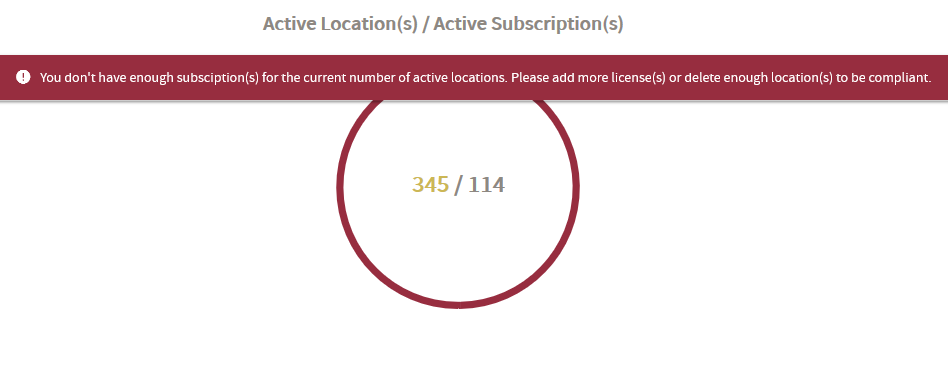 |
On location plans, each location covers up to 4 counting devices. Each additional group of 4 devices adds one subscription.
There's no expiry date on this screen because T.M.A.S. subscriptions renew automatically until cancelled.
Manage credit cards
See Manage Credit Cards.
What changes require StoreTraffic?
You can't change or cancel an existing T.M.A.S. subscription in the portal. Email Customer Success at success@storetraffic.com for any of the following.
Change your plan or quantity
This includes adding subscriptions, editing your plan, or upgrading to Retail or Real-Time.
Switch between monthly and yearly billing
Customer Success will review your subscription and send you the options.
Cancel your subscription
Email Customer Success to cancel. Export any data you want to keep before your account is changed.
Reduce billing after removing locations or devices
- Export the data you want to keep from T.M.A.S.
- Delete the locations or devices you no longer need.
- Email success@storetraffic.com so your billing can be updated.
Deleting a location or device does not reduce your bill by itself. Billing is based on the total number of locations and devices on your account. You can't split subscriptions by location, brand or country under one billing address.
Report a device you didn't add
Chain & User Managers get an automatic email each time a device is added to the account. If you didn't authorize a device, contact Customer Success right away.
If support replaced a device under RMA, you shouldn't get a new-device email. If you do, contact Tech Support using the chat icon in the bottom-right corner of T.M.A.S.
Pay by another method
T.M.A.S. accepts AMEX, Visa and Mastercard. For amounts of $1,000 USD or more, other payment methods may be available, so contact Customer Success. Customers approved for another payment method before April 2019 can keep using it.
Get receipts or invoices
Email administration@storetraffic.com. Replies usually arrive within 2 business days.