How do I set up staff filtering on the 3DScope II?
Install a UWB receiver in the 3DScope II and have staff wear UWB tags so the sensor can detect and exclude them from customer traffic counts.
Table of Contents
How do I set up staff filtering on the 3DScope II?
Staff filtering on the 3DScope II works by installing a UWB receiver in the sensor and having each staff member wear a UWB tag, which the receiver detects and excludes from customer traffic counts in T.M.A.S.
What you need
- A 3DScope II LC or HC unit (indoor only, mounted at a maximum height of 4m/13ft, with a USB slot), running firmware v2.6 or higher
- One UWB USB receiver and multiple UWB tags
- A QI-certified (or QI-compatible) inductive charging station, purchased separately — Storetraffic suggests the “Zealsound Wireless Charging Pad”
- The Object Classification license, which is included with a 3DScope II purchase
A T.M.A.S. subscription isn't required to use the kit — it's hardware-based, and Storetraffic handles setup. Note that in the current version, staff-count data doesn't transfer into T.M.A.S. itself.
Installing the receiver
 |
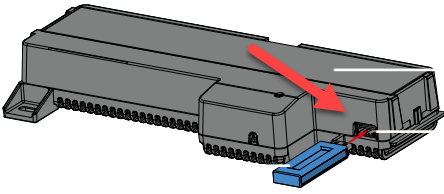 |
- Mount the 3DScope II (max. 4m/13ft high) with an unobstructed view of the area.
- Remove the device cover to access the USB port; no need to unmount the unit.
- Power off the device by disconnecting the network cable or PoE injector.
- Insert the UWB USB receiver.
- Power the device back on by reconnecting the network cable or PoE injector.
- Confirm the setup through configuration (below).
3DScope II LC with surface Box
On surface-mounted 3DScope II LC enclosures, there's limited space — insert the receiver carefully.

Configuring staff detection in T.M.A.S.
- Configure the camera's position, height range, floor area, and obstructions as you normally would.
- Open the "Other Settings" page.
- Find "Staff Detection Tag Height" and set it using the spin control (10cm increments) or the slider. Storetraffic suggests 110cm (43in) as a starting point.
- On each counting line, click "Edit" and check "Staff Counting."
- Save your changes and test that staff crossing the line are being excluded.
Setups with multiple sensors
For a small fusion setup (2–3 sensors), one USB receiver on the master sensor is enough — ideally placed at the center of the entrance. For larger setups (5+ sensors), adding receivers to more sensors can improve detection speed; there's no fixed limit on how many receivers you can use.
How staff should wear the tags
Tags don't need to be visible and aren't linked to a specific employee — any tag just marks its wearer as staff. The best position is upper front of the body; an inside front pants pocket also works but may reduce accuracy. Avoid a back pocket (risk of damage), the back of the body (blocks the signal), or clipping it to a belt. A wrist strap (18mm) is recommended for security. Tags shouldn't leave the premises unless that's a deliberate store policy.
Charging and battery
Charge tags for 2–3 hours at a time, at least once a week — tags hold a minimum of 250 working hours and enter power-save mode when not moving.
Don't overcharge (it generates heat and voids the warranty) and don't leave tags charging overnight. Keep the charger at least 3ft (1m) from microwave ovens.
Charging draws a maximum of 5W (5V, 1A).
| Setting up the camera position and tag height for staff filtering | ||
| ||
|
Follow these steps to correctly set the staff filtering tag height, ensuring accurate detection and optimal system performance:
|


| Enabling Staff Counting on 3DScope II counters (Will shows counts only on device) | |
 |
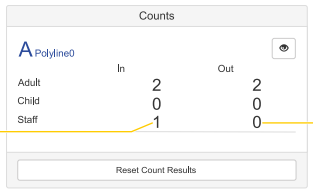 NOTE: If the “Staff Counting” checkbox is not visible, then you do not have firmware 2.6 installed.
|
| For detailed instructions on setting up staff counting in T.M.A.S., please refer to our comprehensive Staff Counting Setup Guide | |
FAQ: Mastering UWB |
| Q: What is Ultra-Wideband (UWB)? |
|
A: UWB is like a super-smart Wi-Fi that can tell exactly where things are and send data securely over short distances.
More Technical: UWB is a wireless communication protocol known for its high bandwidth and precision in short-range applications, enabling accurate location tracking and secure data transmission. |
| Q: How does UWB differ from Wi-Fi and Bluetooth? |
|
A: UWB sends data faster and more accurately than Wi-Fi and Bluetooth, especially when figuring out the location of something, like being able to find a needle in a haystack.
More Technical: Unlike Wi-Fi and Bluetooth, UWB operates over a much wider frequency range, allowing for higher data transfer rates and more accurate location tracking, typically within a few centimeters / inches. |
| Q: What are the common uses of UWB technology? |
|
A: UWB is great to know the exact spot of something without making a mistake—like finding your car in a huge parking lot, making sure people don't get too close to each other in crowded places, or opening doors without keys.
More Technical: UWB is used for applications requiring precise location tracking, such as real-time location systems, contact tracing, and secure keyless entry systems in cars and smart locks. |
| Q: Is UWB technology secure? |
|
A: Yes, it's very secure. Because it only works over short distances and in a unique way, it's hard for unwanted guests to intercept.
More Technical: Yes, UWB's unique signal characteristics and short-range capabilities make it difficult to intercept, offering a more secure communication channel compared to other wireless technologies. |
| Q: Can UWB technology work indoors? |
| A: Yes, UWB is particularly effective for indoor use where its precision in location tracking is highly beneficial, such as in retail environments for staff monitoring or asset tracking. |
| Q: Does UWB consume a lot of power? |
| A: No, one of the advantages of UWB technology is its low power consumption, making it suitable for use in battery-operated devices + When UWB tags are NOT in the UWB USB range, the tags go in power saving mode. |
| Q: How does UWB achieve precise location tracking? |
|
A: UWB measures how long it takes for a tiny radio wave to travel between your device and what you're trying to find, allowing it to pinpoint locations super accurately.
More Technical: UWB achieves precision through its ability to measure the time of flight of radio waves with great accuracy, enabling it to pinpoint locations within a few centimeters. |
| Q: Is UWB technology widely available in consumer devices? |
| A: UWB technology is increasingly being integrated into various consumer electronics, such as smartphones and wearable devices, for applications like data transfer and precise location services. |
FAQ: Staff filtering and tag functionality |
| Q: How should the tags be carried? |
|
A: The tags should best be worn on the upper front part of the body. Carrying the tag inside a front pants pocket is possible; note this might reduce tracking accuracy in challenging installations.
|
| Q: Does the tag need to be visible? |
| The tag does not need to be worn openly visible and can be covered by clothing, i.e. carried inside a jacket / pant pocket. |
| Q: How many tags are needed for staff filtering to work? |
| A: Every employee who may cross the counting lines should wear a tag for accurate staff filtering. |
| Q: What if an employee forgets their tag at home? |
| A: Employees are NOT supposed to take their tags at home. Provided you choose to deploy it that way though, it's useful to have spare tags in the store / location. Without a tag, an employee will generate one count when entering / leaving the store / location. |
| Q: What happens if one employee accidentally switches with another team member? |
| A: The tags are not linked to individual employees. Switching tags does not have any effect on the staff filtering feature. |
| Q: Does SMS Storetraffic recommend a specific wireless inductive charging station? |
| A: Look for a QI Certified or QI compatible charging station with multiple charging pads. |
| Q: Do the tags come already pre-charged? |
| A: No, they must be charged prior to setup. |
| Q: What is the maximum battery life of the tag? |
| A: The tags should last at least 250 working hours. When at rest (not worn), the tags go into a power saving mode. |
| Q: What do the different flashing patterns of the tag LED symbolize? |
|
| Q: When the tag is placed on the inductive charging station, what do the different flashing patterns of the tag LED symbolize? |
|
| Q: Will I get a notification when tag battery is low? |
| A: The LED of the tags changes from green to red if the battery is low. Tags should be charged at least once a week. |
| Q: How long does it take to charge each tag? |
| A: Charging an empty battery with a 5 W charger will take approximately three hours. |
| Q: How do we prevent detecting other UWB tags or devices within proximity (e.g. two stores next to each other using the same solution from HELLA, etc.)? |
| A: Currently, any person wearing any of our tags will be classified as staff. The configuration of valid tags could be part of future extensions of the feature. |
| Q: What is the accuracy of staff exclusion? |
| A: We have tested the staff exclusion in our labs and achieved high accuracy. An accuracy value will be calculated on the results of more live deployments in stores / locations. |
| Q: Can you prevent false positives, i.e. object class “staff” to jump on a regular customer? |
| A: Our mapping algorithm was designed to minimize false positives. Even though no system will be 100 % accurate, this should not happen in statistic relevant number. |
| Q: What is the coverage per receiver? |
| A: The maximum range of the tags is greater than 10 m / 33 ft. However, for power saving, the update frequency of the tags is reduced when they are not within close proximity to the receiver. To obtain best results, people should pass an area within a radius of 3 m / 10 ft around the receiver. In a future version, this distance constraint might be configurable. |
| Q: Is there a maximum installation height for the 3D when using the staff filtering feature? |
| A: For the reasons above, installations with the staff filtering kits should not be higher than 4 m / 13 ft. |
| Q: Is it possible to use multiple receivers in a sensor array? |
| A: Yes, in the current version it is possible to use multiple receivers in an array. As described above, people should pass an area of 3m around the receiver. |
| Q: Is a license required for staff filtering? |
| A: Staff filtering requires the Object Classification license (included with purchase and installed on 3DScope II counters) and the UWB USB receiver and UWB tags. |
| Q: What firmware version will be required? |
| A: Staff filtering requires firmware version 2.6.0 or higher. |
| Q: Is a T.M.A.S. subscription required for staff filtering? |
| A: Free app users are able to purchase the staff filtering kit, however, the setup done will be done by SMS. |
FAQ: USB UWB Receiver in Multi-Sensor Fusion Setup |
Q: Do we need a USB UWB Receiver Dongle in each unit or just the Master (Host) sensor? |
| A: For smaller sensor fusion setups (e.g., 2-3 sensors), only the Master sensor requires the USB UWB Receiver. However, in larger setups (e.g., 5 sensors), multiple receivers can be used to improve detection speed. |
| Q: Where should the Master sensor be placed in a multi-sensor setup? |
| A: Ideally, the Master sensor should be positioned at the center of the entrance when using multiple sensors to ensure optimal coverage. |
| Q: Can multiple UWB receivers be used in a sensor fusion? |
| A: Yes, multiple receivers can be used, and in larger arrays, adding extra receivers may enhance detection efficiency. |
| Q: Is there a limit to how many UWB receivers can be used? |
| A: No, there is no strict limitation on the number of UWB receivers in a fusion setup. The number required depends on the size of the entrance and the number of sensors in use. |
Staff Tags – Charging Safety & Best Practices FAQ |
| Q1: What is the maximum safe wattage for Qi wireless charging of the staff tags to prevent overheating? |
| A1: The staff tags support a maximum charging power of 5W (5V, 1A). The battery charging IC is matched to the battery and only allows a maximum current of 200mA at 4.2V. |
| Q2: Can a higher-wattage charger (e.g., 10W or 15W) be used for charging the staff tags? |
| A2: Yes, a higher-wattage charger can be used since Qi-certified chargers and receivers negotiate power levels. The staff tag will only draw the necessary 5W, preventing excessive power input. However, it is always recommended to use a standard 5W Qi charger to avoid unnecessary risks. |
| Q3: What is the optimal charging time for the staff tags? |
| A3: The optimal charging time is between 2 to 3 hours. Charging beyond this period is not required and may cause unnecessary heating. |
| Q4: Is there any overheating protection in the staff tags? |
| A4: Yes, the staff tags have built-in overheating protection. Charging and discharging will stop automatically if the internal temperature becomes too high. However, if the environment where the tags are charged exceeds 60°C, overheating issues could still occur. |
| Q5: Are there known risks associated with using fast Qi chargers? |
| A5: While Qi fast chargers (e.g., 10W, 15W) will not force excessive power into the tag, prolonged charging with a high-powered charger may still generate heat. To minimize any risks, avoid charging in extremely hot environments and do not leave tags on the charger for extended periods. |
| Q6: Can staff tags be charged overnight? |
| A6: While the tags have safety mechanisms, it is not recommended to leave them on a charger overnight. Doing so does not improve battery life and may lead to unnecessary heat buildup over time. |
| Q7: What should I do if my staff tag becomes hot while charging? |
|
A7: If a staff tag becomes unusually hot while charging:
|
| Q8: Can a damaged battery be replaced in a staff tag? |
| A8: If a staff tag fails to hold a charge or overheats despite following recommended practices, contact SMS Storetraffic support for guidance on potential replacement. |